![devensoft logo small.png]](https://support.devensoft.com/hs-fs/hubfs/Logos/devensoft%20logo%20small.png?height=40&name=devensoft%20logo%20small.png)
Overview
External participants access the secure Target Portal, not the internal Devensoft application. Target Groups control which external contacts receive and can access specific Due Diligence request items.
Target Groups can be used to:
- Restrict confidential functional areas, such as Human Resources
- Give different buyer teams access to different request items
- Control which documents are visible to each external group
- Manage when new participants receive their portal invitations
Access is controlled through the request item assigned to the Target Group. Documents attached to a request item automatically follow the access assigned to that item.
Understanding Target Groups
A Target Group contains:
- The external contacts who belong to the group
- The Due Diligence request items that the group may access
External users only see request items assigned to their Target Group after those items have been shared using Send to Target.
Important access rules
- Each request item can be assigned to one Target Group at a time.
- A contact added to multiple Target Groups receives the combined access from all those groups.
- The default External Admin group can access all Due Diligence request items.
- Anyone who should have restricted access must not be added to External Admin.
For example, a participant who belongs to both Buyer Non-HR and HR Reviewers will be able to see the request items assigned to both groups.
How Portal Invitation Emails Work
Invitation emails are triggered when content becomes available to an external participant.
New Target Group with no shared content
When a new Target Group is created:
- Add the external contacts to the group.
- Assign the appropriate Due Diligence request items.
- The contacts will not receive an invitation merely because they were added to an empty group.
- Select the relevant request items and click Send to Target.
- The contacts will receive their Target Portal invitation.
First-time recipients are prompted to create their account and password. Existing portal users receive a notification that new content is available.
Target Group that already has shared content
When request items have already been shared with a Target Group:
- Add the new external contact to the existing group.
- The invitation is triggered automatically.
- Another Send to Target action is not required solely to invite the new contact.
This occurs because the group already has content available for the new participant to review.
How to Restrict Access to a Functional Area
The following example explains how to give one group access to everything except Human Resources.
Step 1: Create the restricted Target Group
Create a new Target Group with a clear name, such as:
- Buyer Non-HR
- Buyer Restricted Access
- Non-HR Reviewers
Avoid using the default External Admin group because its members can see all Due Diligence request items.
Screenshot placeholder: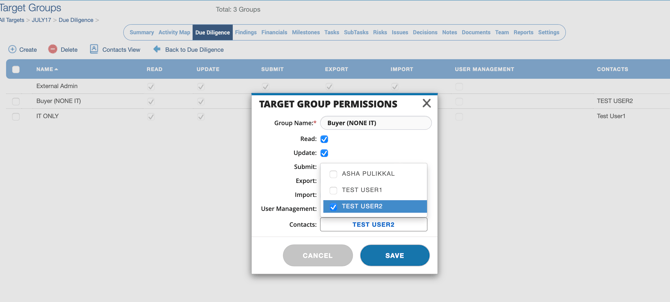
Step 2: Create or identify the HR group
Create a separate group for participants who are authorized to review HR information, such as:
- HR Reviewers
- Buyer HR Access
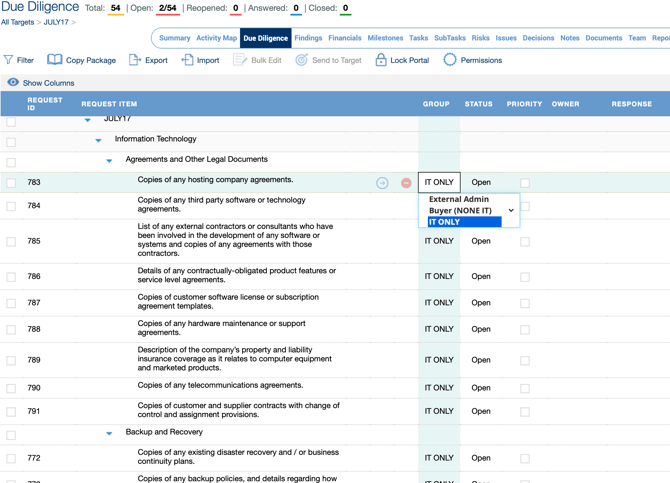
Step 3: Assign the request items
Assign the request items based on the required access:
| Request type | Target Group |
|---|---|
| Financials | Buyer Non-HR |
| Legal | Buyer Non-HR |
| Operations | Buyer Non-HR |
| Technology | Buyer Non-HR |
| Human Resources | HR Reviewers |
The restricted group should receive all applicable request items except HR.
Step 4: Add the external contacts
Add the restricted participants only to Buyer Non-HR.
Add HR-authorized participants to HR Reviewers.
A participant who requires full access may be added to both groups. The system combines the request items available through each group.
Step 5: Verify External Admin membership
Confirm that the restricted participants are not also members of External Admin.
Membership in External Admin overrides the intended restriction because that group can access all request items in the deal.
Step 6: Share the request items
Select the request items that are ready and click Send to Target.
The Send to Target action notifies the external team and makes the selected request items and submitted files available through the Target Portal.
Items that have not been sent remain unavailable to external participants.
Step 7: Test the external access
Before sharing confidential content, test the setup using external test accounts:
- Log in as a participant from the restricted group.
- Confirm that the user can see the non-HR request items.
- Confirm that the user cannot see the HR request items.
- Log in as an HR-authorized participant.
- Confirm that the HR request items and documents are available.
- Verify that each participant can only see the content assigned through their Target Group membership.
How Document Access Works
Documents inherit the access of the request item to which they are attached.
For example:
- A document attached to an HR request assigned to HR Reviewers is visible only to participants with access to that group.
- A participant in Buyer Non-HR cannot see the HR request item or its attached documents.
- Documents do not need to be restricted individually when the request items are assigned correctly.
Important document warning
After a request item has been sent, newly added documents may become immediately visible to the external users who have access to that request item. Confirm the Target Group assignment before uploading additional documents to an already-shared request.
Example Configuration
A deal requires two external review teams:
Buyer Non-HR
Contacts:
- General buyer team
- Legal reviewers
- Financial reviewers
Assigned request items:
- Financials
- Operations
- Insurance
- Technology
- Legal
- Environmental
- Benefits
HR Reviewers
Contacts:
- Authorized HR buyer representatives
Assigned request items:
- Human Resources
Participants in Buyer Non-HR cannot see the HR request items or HR documents. Participants who need access to everything may be added to both groups.
Common Questions
Why did a new contact receive an invitation immediately?
The Target Group already had shared content. When the contact was added, the system detected that request items were available and automatically sent the portal invitation.
Why did contacts added to a new group not receive an invitation?
The group did not yet have any shared request items. The invitation will be sent when the appropriate request items are first shared using Send to Target.
Can a document be restricted separately from its request item?
Document access follows the request item. Assign the request item to the appropriate Target Group, and the attached documents will follow that access.
Can someone belong to more than one Target Group?
Yes. Their access will include all request items assigned to every group they belong to.
Why can a restricted participant still see HR?
Check whether the participant:
- Is also a member of the HR group
- Belongs to another group containing HR request items
- Was added to External Admin
Remove the user from any group that provides unintended HR access.
Do external users access the internal Devensoft application?
No. External participants access the secure Target Portal and participate without entering the internal Devensoft tenant.
Best Practices
- Configure Target Groups before sharing confidential request items.
- Use descriptive names such as Buyer Non-HR or HR Reviewers.
- Keep restricted participants out of External Admin (unless they need access to all request items).
- Review contacts who belong to multiple groups.
- Confirm the Target Group assignment before attaching confidential documents.
- Test the portal using representative external accounts before launching the data room.
- Remember that adding a new contact to a group with existing shared content may immediately trigger the invitation and provide access to that group’s available items.
Related Resources
- Target Portal Overview
https://support.devensoft.com/knowledge/target-portal-overview - FAQs for Internal and External Due Diligence Users
https://support.devensoft.com/knowledge/faqs-for-internal-and-external-due-diligence-users